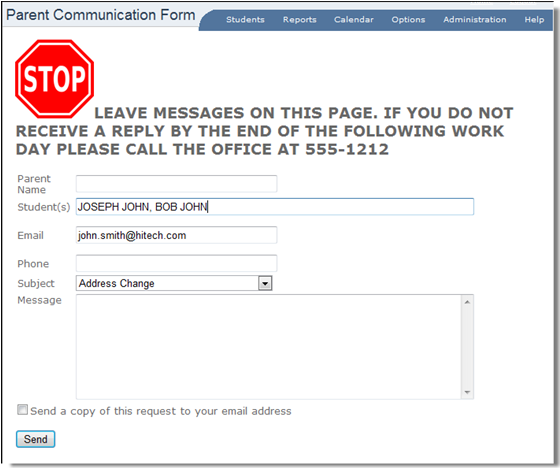
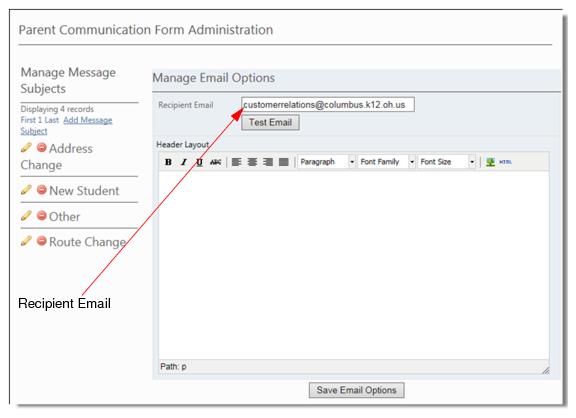
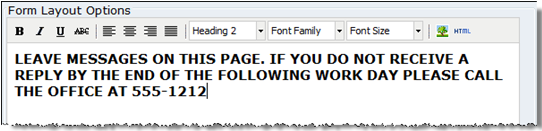
The Manage Email Options panel allows you to change the recipient of a parent’s e-mail without having to log into the server and run the VersaTrans Integration Service Administrator Utility (see, Implementing Parent Communication in the Tyler’s Versatrans Integration Administrator Utility User’s Guide). You can also create a custom header that will display on the Parent Communication Form.
|
1.
|
In the Recipient Email box enter the e-mail address of the individual/office that you want the parent’s e-mail messages sent to.
|
|
2.
|
Click Test Email to validate that mail can in fact be sent to that address, (e-mail server settings were correct and the e-mail address is valid).
|
|
3.
|
Click Save Email Options.
|
|
3.
|
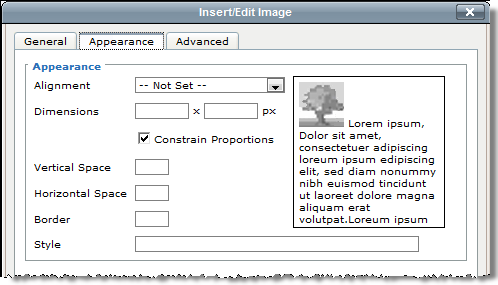
 to display the Insert Edit Image dialog and paste the URL into the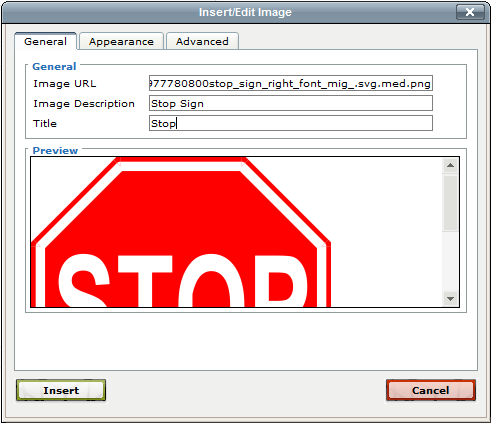
|
5.
|
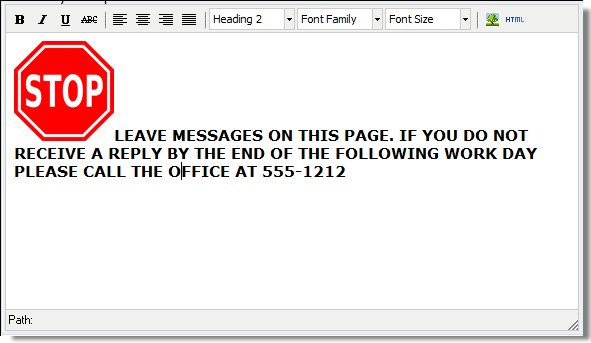
Enter 100 x 100 (pixels) for the Dimensions and click Insert.
|
|
6.
|
Click Save Email Options.
|
|
7.
|
Go to Home and click the “Parent Communication” link.
|