|
Path:
|
|
2.
|
Click Edit User Group to display the Edit User Group screen.
|
|
4.
|
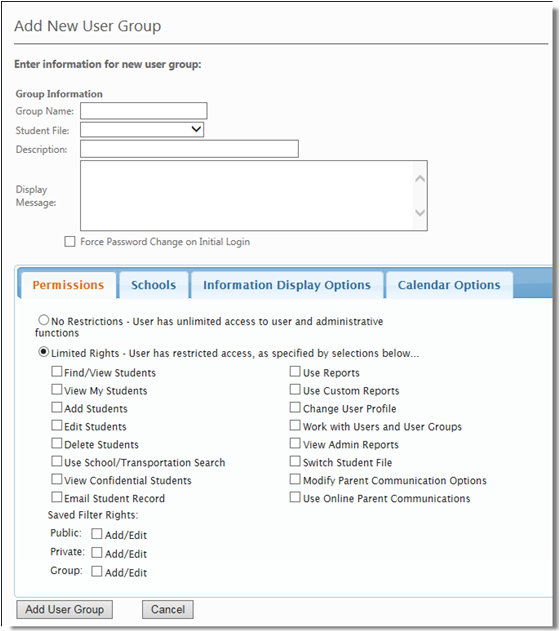
Click Force Password Change on Initial Login to allow the user with Administrator permissions to force a password change for any new users added to the group the next time they log in.
|
|
5.
|
|
6.
|
When you have completed your changes, click Save User Group to save them. The system changes the permissions of each member of the group immediately. (Users who are logged in to the system during this process see these changes the next time they log in.)
|